
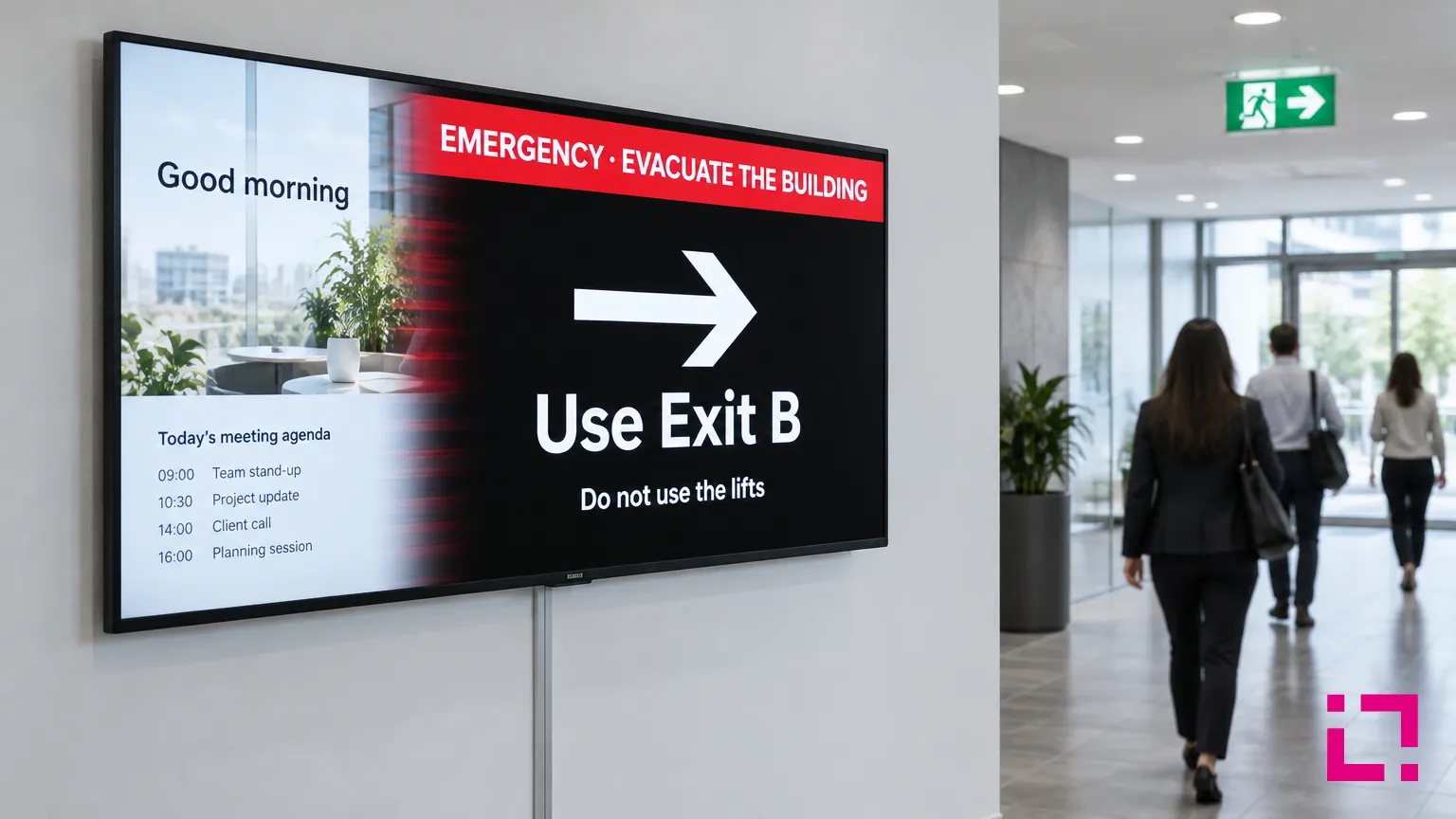
Every office, campus and shopping centre already has screens showing the menu, the agenda or the weather. When something goes wrong, they are among the most visible surfaces in the building. Whether they help depends on decisions made months earlier, not in the minute something happens.
Urgent notices and emergencies are not the same thing
Most of the time, "urgent" means a building closed for the day, a blocked car park entrance, a corridor out of use, or instructions for a scheduled drill. A university closing a building, a shopping centre marking an area off-limits, a company running an evacuation exercise: these are situations where managing screens centrally makes a concrete difference.
Alarm and evacuation systems are a different matter. They are subject to specific safety requirements and are designed, certified and maintained as part of the building's safety plan. Alarms, public-address systems, emergency lighting and trained staff stay at the centre of the response. Screens can add a visual layer, reaching people who can't hear an announcement, but they support the safety plan. They don't replace it.
Write the messages in advance, and get them approved
Nobody writes a clear instruction under pressure. Prepare templates for the situations your plan covers, such as an area closed, shelter in place or evacuation. Each one answers four questions in large, plain text:
- What is happening.
- Who it concerns.
- What to do now.
- Where to get more information.
Evacuation instructions in particular, such as which exit to use, must match the emergency plan and be approved by the people responsible for safety. Whoever publishes a message chooses from approved templates. They don't write instructions on the spot.
Decide who can publish an alert
Name the people who can publish urgent messages, with backups for nights, weekends and holidays. The action itself should be quick. With Live Scenario in Livesignage, one action switches the content on one or more displays to a prepared layout, and a second action returns them to normal programming.
Sending the command is not the same as the message being seen. A display that is off, disconnected or unreachable may not show it. That is why screens can only ever be one of several channels.
In some environments, integrations with building management systems may allow predefined messages to be triggered automatically. Any connection involving safety-critical systems must be assessed and validated by the responsible technical and safety professionals.
Target the right screens
A notice about building A should not appear in building B, and a closed exit should not be recommended anywhere. Group screens by building, floor and area in advance, so whoever publishes the message picks a zone rather than forty screens one by one.
Plan for the screen that doesn't show the message
The procedure has to work without any single display. Check which other channels cover the same area, and make sure staff know them.
Test it during a drill
Run the procedure during a scheduled drill: publish the message, check every zone, time how long it takes, switch back. Tests catch outdated contact names, unclear wording and screens assigned to the wrong zone. Repeat after any change to buildings, teams or displays.
Close the incident properly
When it is over, someone confirms that no urgent message is still on screen and that normal content is back. An old alert left running after the all-clear damages trust in the next one.
Want to add a visual communication layer to your existing emergency procedures? Write to us and we'll connect you with a Livesignage partner in your country.